iOS-ify your Mac Snippet Abbreviations

Philip Blog, iPhone, TextExpander, TextExpander Tips

For those of us who made the bulk of our snippets on the Mac, some of us use a system of prefixes to differentiate snippets from other words we type. For example,

/wiki
slash / used to start web addresses
,,h1
comma comma ,, used to start code snippets
;addr
semi-colon ; used to start snippets you share with the rest of your team

Whatever your prefix system, it is tricky to use these types of snippets on iOS, where punctuation keys take an extra tap to shift out of letter view into punctuation view.

In trying to solve this problem, we have considered adding a key to the letter view of the TextExpander keyboard which is programmable by the user. As in, you would have an extra key to setup as a semi-colon ; key on the letter view of the keyboard, while others could choose to make that a / slash key. 

However, this is still on the “nice to have in the future” feature list. In the meantime, here’s a script-based work-around.

Download this Abbreviation Alias script to create a new group of snippet aliases which have your choice of iOS friendly abbreviation prefix. You will end up with a new snippet group and your current snippets are not effected.

How does this work?

This script uses the nested snippet feature of TextExpander. While a single snippet cannot have two abbreviations, you can have two snippets, both with unique abbreviations, where the second nests the first so that both expand to the same content. This script makes those second snippets for you so you can have your Mac abbreviations and your iOS abbreviations. For example:

Snippet 1: Mac style

Abbreviation: /wiki
Content: http://www.wikipedia.org

Snippet 2: iOS style

Abbreviation: zzwiki
Content: %snippet:/wiki%

Use the Script
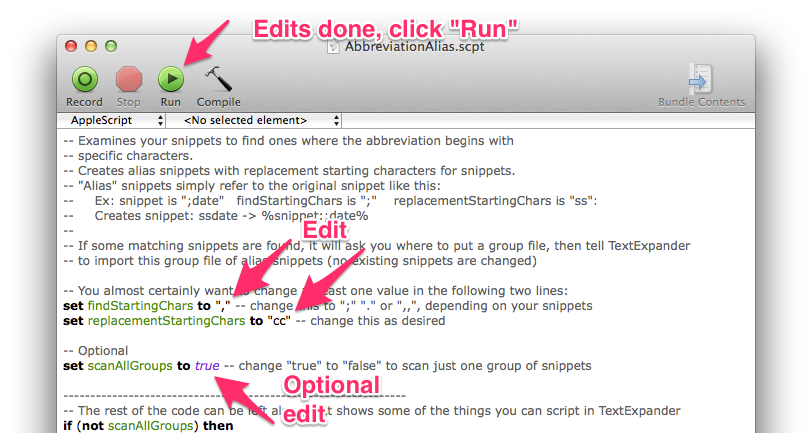
1. Download the script and click on it to open it in the AppleScript Editor, an app that comes with your Mac. Yes, this means you are looking at actual script, but we have added directions for you to follow, all of the gray text on each line after a “–“.

There are only two places you need to change things:

  • Set the abbreviation prefix you use and want to change
  • Set the new iOS friendly prefix you want to use

Optional Third

  • Scan your snippets one group at a time instead of all at once by changing the word “true” to “false” 

2. Once you have done this, in the menubar of the AppleScript Editor window click on “Run.” If you chose to run one group at a time a popup window will appear to let you choose one of your snippet groups.

3. A dialog will appear to let you save and name the new snippet group, which appears in the dialog as a TSV file. It will even show you how many new snippets you have. Click Save and you will find a new group of snippets in TextExpander with their punctuation prefixes replaced with iOS friendly “cc” or “zz” or whatever you chose.

It doesn’t matter where the TSV file saves, once you see the new group in the TextExpander window, you can delete the TSV file.

This new group is just aliases. When you need to edit a snippet, go to the original snippet to edit its contents.

iCloud, PDFpen and iOS 8 — Before you update

Philip Blog, iPhone, PDFpen

If you have PDFpen running on your Mac and PDFpen on your iPad or iPhone, please be aware of what updating to iOS 8’s new iCloud Drive will mean for you — no more syncing with your Mac until Yosemite (OS X 10.10).

Macworld already has a good article on this topic, check it out for more details.

When you update your iPhone or iPad to iOS 8, you are offered the option to update to the new iCloud Drive. If you do, all your iCloud documents are transferred from the old iCloud to the new iCloud Drive. However, this means files on your iOS 8 device can no longer use iCloud to sync with files on devices running iOS 7 or Mavericks, they can only sync with iOS 8 and Yosemite devices. Yosemite is not expected to release until later this year.

Essentially, the iCloud of iOS 7 and Mavericks (OS X 10.9) is a different “cloud” than the new iCloud Drive of iOS 8 and the upcoming Yosemite, and those two clouds don’t talk to each other.

If you have updated to iOS 8 and the new iCloud Drive, you can still sync your documents in PDFpen using Dropbox. In PDFpen for Mac, simply store your files in a Dropbox folder. In PDFpen for iPhone or iPad add that same Dropbox folder as a sync folder.

Adding a Synchronized Folder:

  1. Tap “Documents”, or the folder title or icon presently displayed in the navigation bar. A menu appears. 
  2. Tap “Edit Sync Folders” and select Dropbox as your sync service and login. 
  3. In the following navigation dialog select a folder for synchronizing then tap “+ Sync Folder”. 

Set this folder to sync its contents automatically by choosing Tools > Settings > Dropbox and switching on “Automatically Sync.”

Navigate into and out of this new folder by tapping the folder title or icon displayed in the navigation bar.

More details are available in the “Synchronized Folders with Dropbox” section of the in-app Help.


What about that scary Full Access warning?

Philip Blog, iPhone, TextExpander

(or, Q: Does TextExpander transmit all my keystrokes to Smile's servers? A: No.)

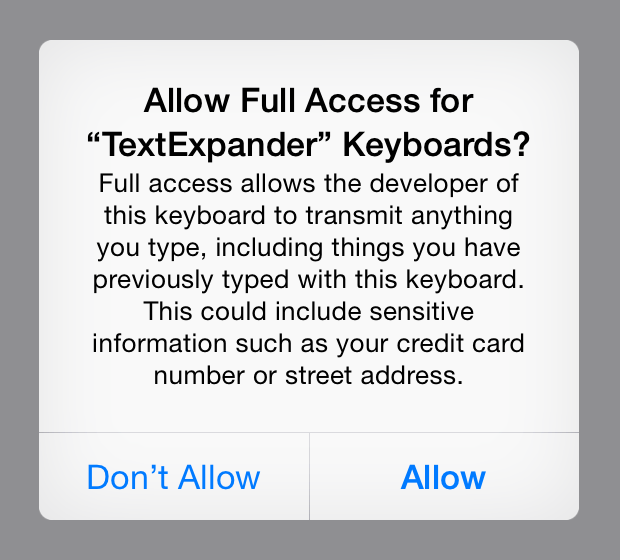
TextExpander touch 3's custom keyboard requires Full Access to function as you'd expect a keyboard to, and the warning iOS presents about this is quite ominous:

Full Access Warning Dialog

The TextExpander keyboard needs to share snippet data with the TextExpander app and to play sounds, such as key clicks and the expansion sound. These are only possible if Full Access is turned on. The TextExpander keyboard does not transmit your data on any network, Wi-Fi or cellular. The keyboard maintains a small buffer of recent key taps for the purpose of matching a snippet abbreviation. The buffer clears after a limited number of key taps, and is never saved to a file or transmitted anywhere. The contents of the buffer are neither stored nor shared with the TextExpander touch app.

Without Full Access, keyboards operate in their own container, which means they don't have access to data from other apps, including the TextExpander app itself. It also means they have more limited access to system services, for example, they can't play sounds. Once a keyboard is granted Full Access, it can share data with another app from the same developer. Once it can do that, the other app can do pretty much anything with that data, including transmitting it over the network. Simply because an app CAN do this doesn't mean that it DOES, nor that it's wise of the app's developer to even consider doing so.

Any standard app on iOS can store and transmit your keystrokes, and this has been true long before iOS 8. Apps in general don't do this because it would be a severe abuse of your trust. Any app caught doing this without your permission would at least be panned on the App Store, if not removed from sale by Apple.

What's new in iOS 8 is that extensions can be more severely limited than apps. This is a great way for new app developers to build trust with users. For established app developers, it can be too limiting, and that's certainly the case with TextExpander. We have done our best to earn your trust over the past 8 years of TextExpander for OS X and 5 years of TextExpander touch for iOS. We tell you what we do with Full Access, and we tell you what we don't do, then we match that with our keyboard's actions.

It's fair of Apple to warn users of the extent of what Full Access means. It’s up to keyboard developers to make the case for Full Access to their users. Perhaps, in a future iOS update, Apple will allow space for a timely message from developers about their keyboard's specific needs for Full Access. For now, we have Apple's accurate and all-encompassing warning to keep users installing keyboards with a healthy sense of caution.


Smile Preps for Yosemite

Philip Blog, DiscLabel, PDFpen, TextExpander

Fall is the season for new Apple operating systems, and we've been busy prepping for OS X 10.10 Yosemite. If you're worried about how your favorite Smile app will do with the update you can check on its status here. 

If you are running the Yosemite beta and notice any new issues, please drop us a line. If you can identify that it is new to Yosemite, and is not in Mavericks, we'll love to know even more.

PDFpen 

  • Version 6.3.2 (plus any later releases) is currently functioning in the Yosemite beta, and we anticipate full functionality upon the Yosemite release.

iCloud
If you have both the Mac and iPhone or iPad versions of PDFpen, for the most seamless experience, we recommend not updating to the new iCloud Drive until you have updated all of your devices to both Yosemite and iOS 8.

TextExpander 

  • Version 4.3.3 (plus any later releases) is currently functioning in the Yosemite beta, and we anticipate full functionality upon the Yosemite release.
  • Version 3 is not fully supported in the current OS X, 10.9 Mavericks. We recommend version 4 instead. For Yosemite, we strongly recommend version 4. If you purchased from the Mac App Store then you have version 3. See this article for free and paid upgrade details.

DiscLabel

  • Version 6.4.1 is currently functioning in the Yosemite beta, and we anticipate full functionality upon the Yosemite release.

TextExpander Snippet Expansion Comes to Every App in iOS 8

Philip Blog, iPhone, TextExpander, Video

We've been hard at work since Apple announced the new and exciting extensions and custom keyboards available in iOS 8.

TextExpander touch 3, coming on the heels of iOS 8 this fall, includes a TextExpander keyboard which can expand snippets in any app on the iPhone or iPad, including built-in apps such as Mail and Safari.

Here’s a sample of the TextExpander keyboard in action:

Prior to iOS 8, only apps which implemented the TextExpander touch SDK could expand snippets directly.

Under iOS 8, the TextExpander keyboard will work system-wide and reliably share snippets with the TextExpander app. The keyboard will also include full VoiceOver accessibility support. 

Join Our Public Beta

This week, we will begin a public beta of TextExpander with the custom keyboard. If you are interested in helping us beta test, please follow our @SmileTEBeta twitter account. We may not be able to accommodate everyone who wants to beta test, and we may accept requests on a rolling basis. Either way you can look forward to TextExpander touch 3 shipping this fall. 

For more about TextExpander touch, see the TextExpander touch home page.