Smileworthy: Tower 2

Philip Blog, Smileworthy

Tower, developed by German team fournova, is a favorite of the Smile team engineers. Many of them have been using Tower for years, and love the version 2 update.

If you work on code and need Git version control, check out Tower. Here’s what our engineers have to say.

I appreciate Tower 2 for its clean appearance. I particularly like the way its commit, conflict, and stash workflows speed me along without getting in my way. – Greg, Founder

Tower’s interface is intuitive and easy to use. It makes navigating source control easy so that I can focus on what I enjoy doing, writing apps. – Natalie, iOS Developer

Tower is the most comprehensive Mac app I’ve found for working with Git. It focuses on how to perform tasks in Git, instead of just mapping buttons to particular Git commands. – Colin, iOS Developer

As many developers know, Git is not always straightforward, Tower dispels the mystery. – Philip, Founder


Sync PDF Documents with PDFpen 7 and iCloud Drive

Philip Blog, PDFpen, PDFpen Tips

Thanks to iCloud Drive, one of the few differences between PDFpen from the Mac App Store v.s. direct from the Smile store has been removed, that of document sync.

Specifically, version 7 of PDFpen and PDFpenPro, purchased directly from Smile, can sync documents with PDFpen for iPad & iPhone version 2 and with PDFpen Scan+ via iCloud Drive. Here's how.

Requirements:

  • You must be running iOS 8 (or later) and have iCloud Drive enabled on your iPad and/or iPhone
  • In the PDFpen for iPad & iPhone and/or PDFpen Scan+ settings, you must have iCloud turned on
  • You must be running OS X Yosemite (or later) and have iCloud Drive enabled on your Mac

On the iPad and iPhone, once you've turned iCloud on in the app settings, all of your documents are stored on iCloud and synced automatically.

On the Mac, only the special “PDFpen container” folder is synced with the iPad and iPhone. That folder is found at the top level of iCloud Drive and is named “PDFpen”, “PDFpenPro”, or “Scan+”. When you modify documents in the PDFpen container folder, they are synced with your iPad and iPhone. Documents stored elsewhere in your iCloud drive on your Mac can be imported on the iPad and iPhone, but they will not sync.

For example, here is what that iCloud folder looks like in the open dialog (File > Open) of PDFpen or PDFpenPro 7.
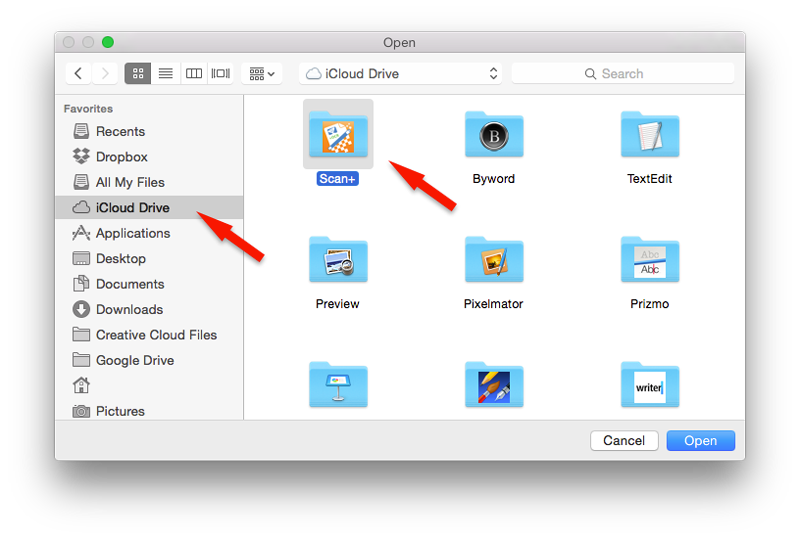
Open Dialog - Cmd+O

Note: The PDFpen container folder may have any of the three visible names noted above, and its visible name may change over time. Under the hood, both the actual name of the folder and its contents are consistent. The visible name is just a cosmetic issue which appears to stem from an Apple bug with how the names of shared iCloud Drive folders are shown in the Finder and file dialogs. Hopefully, this will be fixed in a future update to Yosemite.

If you have questions about syncing your documents, please contact us.

(Aside from the standard differences in all apps purchased directly from the developer v.s. the Mac App Store, the only other difference specific to PDFpen is Library sync, which does require the iCloud available in the Mac App Store version.)


More Elaborate Date Formatting with TextExpander

Philip Blog, TextExpander, TextExpander Tips

One of the most basic yet handy snippets in TextExpander is the current date. When it comes to customizing the date's layout, many users don't realize that TextExpander has supported Unicode Date Format Patterns since version 3.1. In addition to what you can do with TextExpander's built-in date formatting, this adds support for:

– week of year, month
– calendar quarter
– day of year
– time zone
– more elaborate options for hour, minute, seconds, month, day, and year
– era (AD/BC)
– cyclic years (Chinese, Hindu calendars)

Here are a few examples:

Week of year with leading zero for single-digit weeks (e.g. 02):
%date:ww%

Current calendar quarter and year (e.g. Q12015)
%date:QQQyyyy%

Time with long time zone (e.g. 8:11:49 AM America/Los_Angeles)
%date:h:mm:ss a' 'VV%

Please see the Unicode Date Format Patterns documentation for complete details.

If you have a favorite elaborate date format, let us know: we're @TextExpander on Twitter, and we look forward to your tweet.


Number Pages using PDFpen 2 on iPad & iPhone

Philip Blog, PDFpen, PDFpen Tips

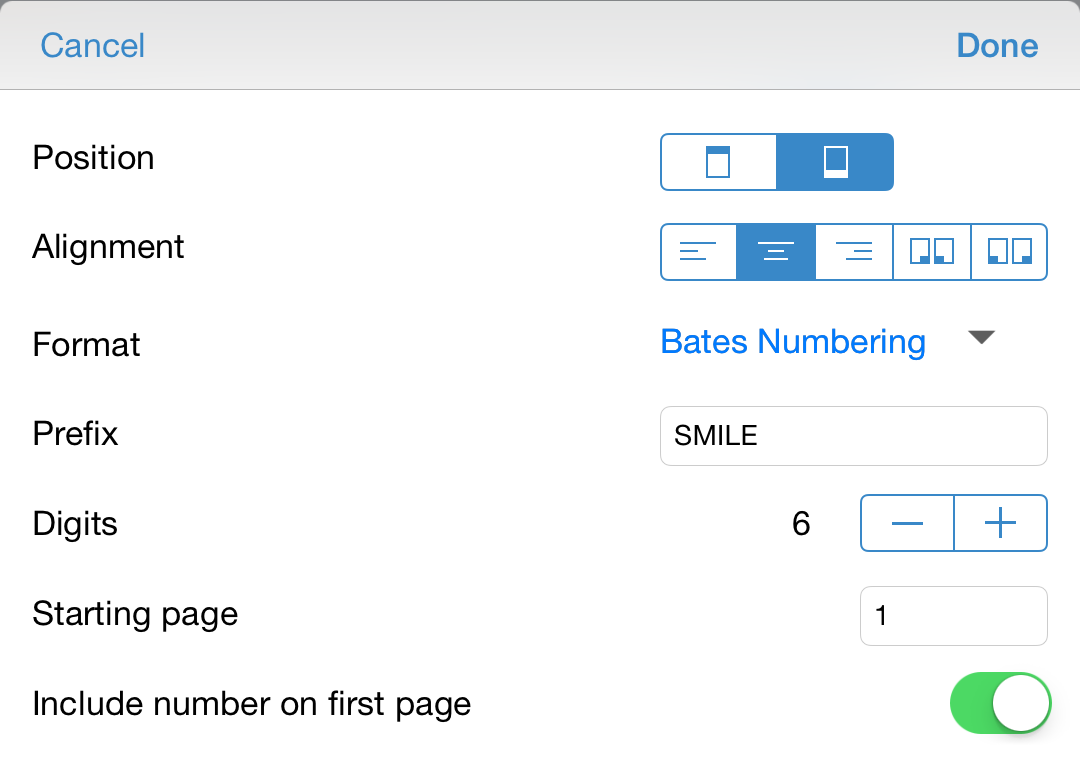
One great new feature in PDFpen 2 is the ability to number pages in a PDF document. PDFpen 2 brings complete, desktop-class PDF page numbering to your iPad and iPhone and includes all of the options from PDFpen for OS X:

  • Vertical Position: top or bottom of the page
  • Alignment: left, center, right, or inner / outer corners book style
  • Format: numbers, Roman numerals, letters, or Bates numbering
  • Prefix, Digits: Options for Bates numbering
  • Starting Page
  • Include number on first page

To access page numbering:

  1. Open a PDF
  2. Tap “Tools” Tools icon
  3. Tap Insert Page Numbers
  4. Select your options
  5. Tap Done

Here's what the page numbering options look like in action:

Page Numbering Options

If you want to change the page numbering after you've added it, just repeat the steps above. Your new numbering will take the place of the old numbering. Details on page numbering are included in the PDFpen 2 online help.

What is Bates numbering?

Bates numbering (or Bates stamping) is a system for uniquely and consecutively numbering the pages of a document to make it easy to identify a specific page. Originally, this was done with a mechanical stamper from the Bates Manufacturing Company. Now, it is a common feature in word processors and PDF editors, and it is required in legal discovery and other fields. To learn more about Bates numbering, see this Wikipedia article.


How PDFpen Scan+ Let Me Copy the Uncopiable

Philip Blog, Case Studies, PDFpen Tips

One of the exciting things about app development is seeing the unintended uses of the app after it is alive in the world. 

This is an example of how one of those side effects worked for me.

The Goal

Copy text from a webpage with unselectable text and paste it into an email. 

The Challenge

The webpage in question is the rudimentary front end for a database that is normally never seen on a mobile device. Text selection just doesn't work, no matter how much you zoom in. The information needed to be exact and re-typing all of it on an iPhone is annoying and laborious. 

The Solution

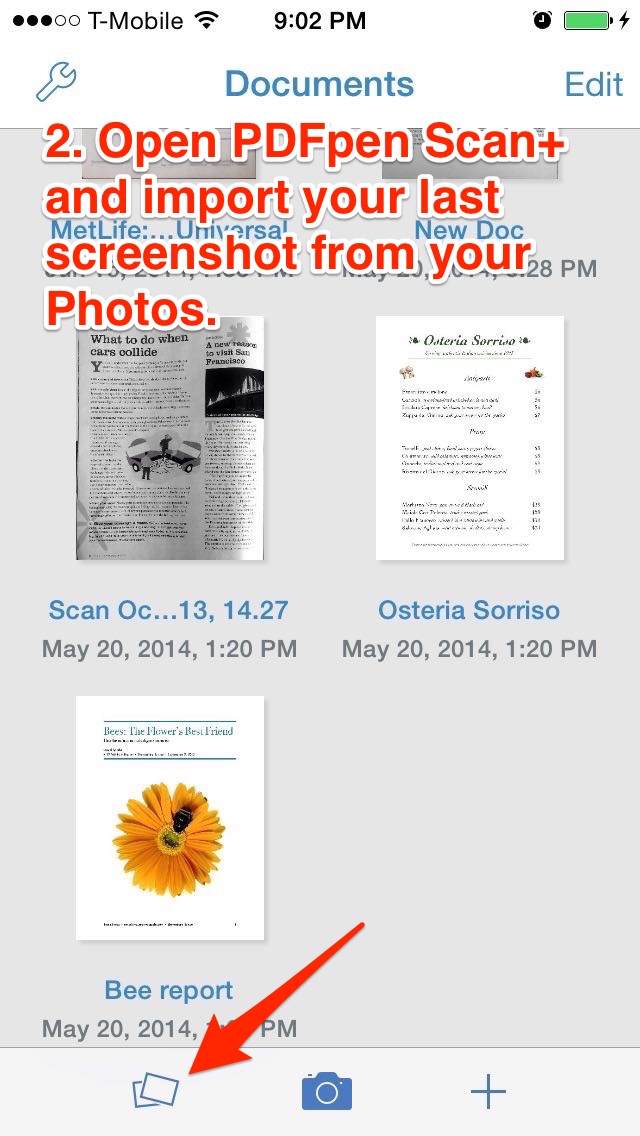
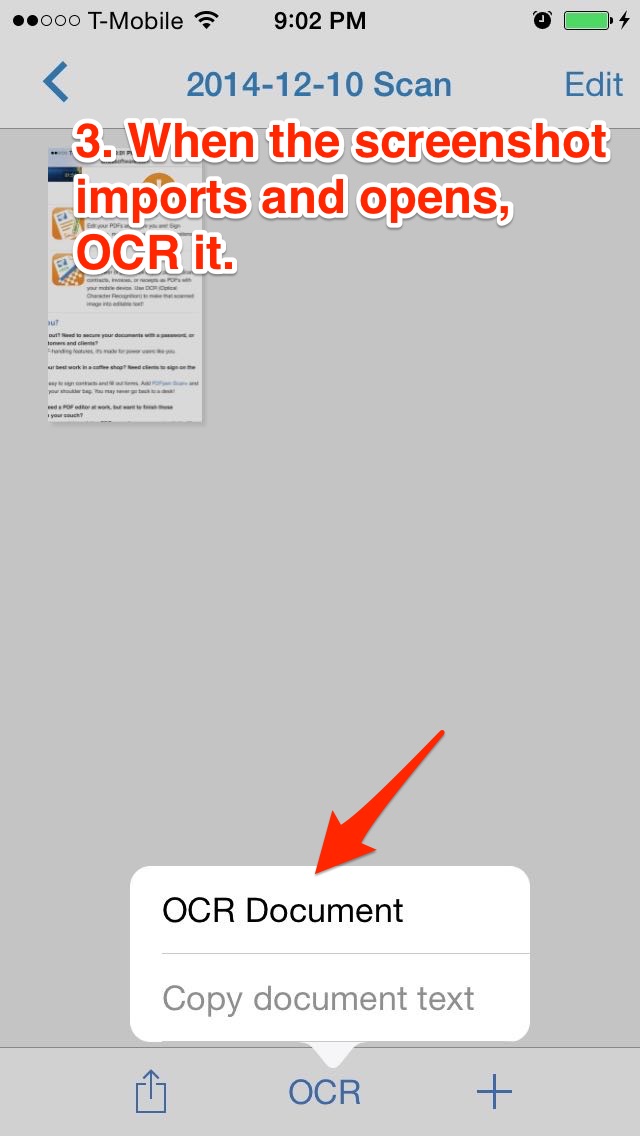
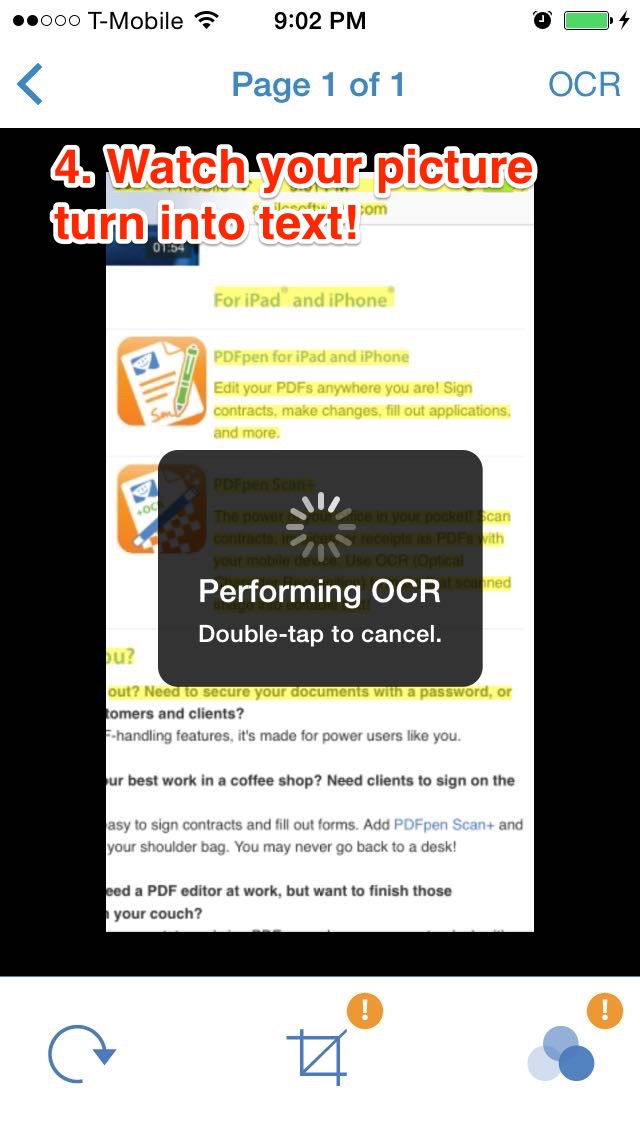
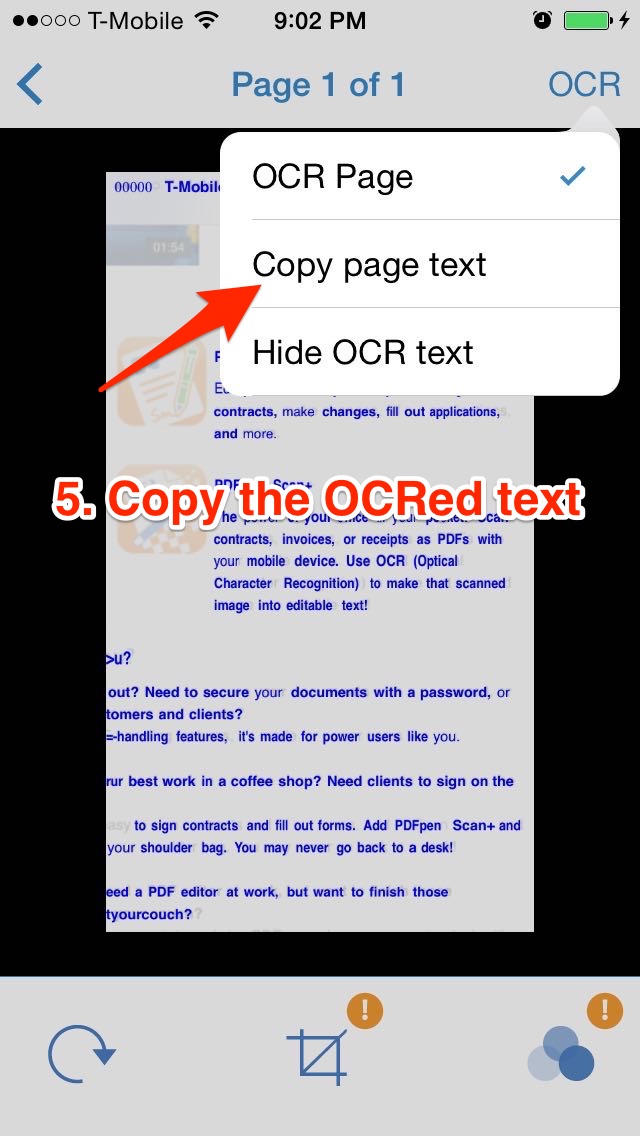
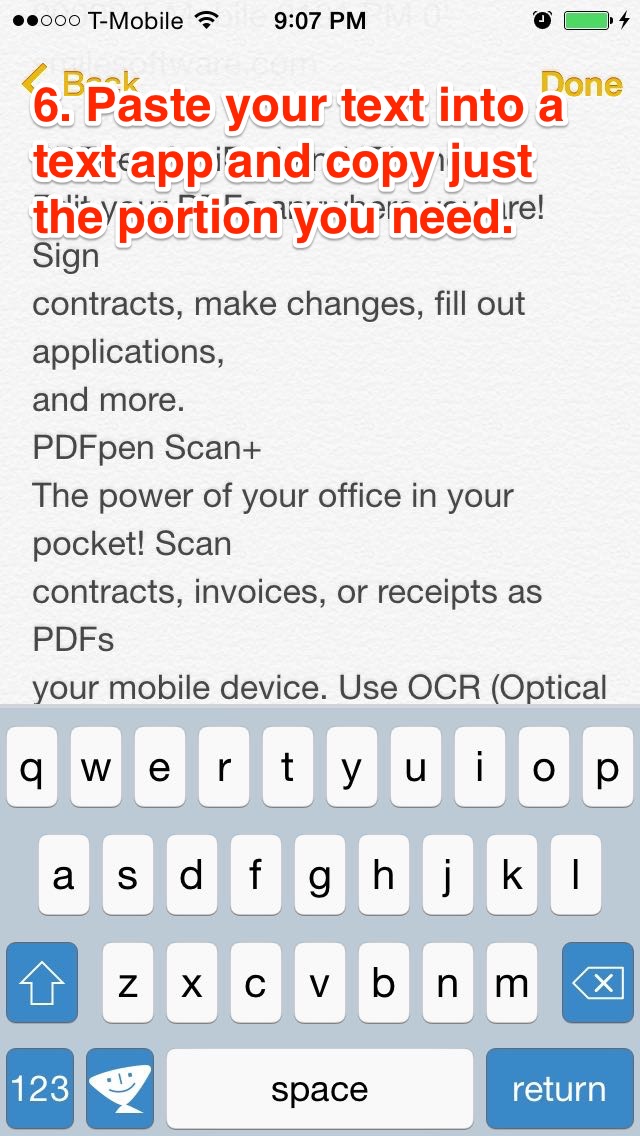
Zoom in to the necessary portion of the page then take a screenshot by holding down the Home and Power buttons at the same time. Then, open Scan+ and import that photo via the Photos button, and run OCR via the “OCR Document” option in the OCR menu.

Voilà, some text that is easily copied into an email, using “Copy page text” from the OCR menu. 

In case you are wondering, that takes 13 taps from initial screenshot to final paste, with a Home button double tap counting as one tap. Having to type out a paragraph of exact code is much more than 13 taps. 

At the end of the day I'm happy to be able to do just one more simple thing on my iPhone that would normally require a Mac. 

Steps: