PDFpen Scan+ 2.0 With Touch-Free Scanning

Philip Blog, iPhone, PDFpen

Today we are happy to announce PDFpen Scan+ 2.0 with touch-free scanning!

This major update to our scanning and OCR app for iPad and iPhone has an all new camera screen which takes the scan for you, crops it, applies a color and paper size, all without a tap.

This is a free update for current PDFpen Scan+ users. For new users, PDFpen Scan+ 2.0 is $6.99 on the App Store.

Here's a preview of the new camera screen in action!


What's new in v.2?

– Touch-free scanning on your iPhone or iPad camera
– Detects page edges automatically when camera is focused and steady
– Camera automatically crops scan
– In-camera setting for color / grayscale / black and white
– In-camera setting for page size, including legal, business card, receipt sizes, and more

What's PDFpen Scan+ all about?

With PDFpen Scan+ you can scan and OCR on your iPhone or iPad with the power you'd expect from a desktop computer. Scan documents, articles, receipts, business cards, recipes, and more. Use OCR (Optical Character Recognition) to make your scans into searchable, highlightable, editable PDFs in your preferred PDF editor. (We like PDFpen for iPad & iPhone for that). Share PDFs of scans with full OCR text via email and popular cloud services, including Dropbox, iCloud Drive and Evernote.


TextExpander touch Week—20-80% off

Philip Blog, TextExpander

Touch 3TextExpander 3 + custom keyboard is discounted this week.

$0.99 on Tuesday, March 17th

$1.99 on Wednesday, March 18th

$2.99 on Thursday, March 19th

$3.99 on Friday, March 20th

Hurry and Buy it Today for the best price.


To get all you productivity fiends (and others who wanna save a little time) typing faster we are discounting our typing shortcut tool for iPad and iPhone.

With TextExpander you can create a library of text “snippets” so that instead of typing out “Talk to you later!” or “myname@mycompanyname.email.com” you can save your keystrokes and type a short abbreviation and have the same result. Type “ttyl” and what appears on screen is “Talk to you later!” Easy.

Check out our videos for how to get started.


Import OS X Shortcuts into TextExpander

Philip Blog, TextExpander

If you're new to TextExpander, you may already have text shortcuts set up on your iPad, iPhone, or Mac.

On the Mac, these shortcuts are found in the Keyboard system preferences pane under the Text tab (System Preferences > Keyboard > Text).

Here's how you can import your OS X shortcuts into TextExpander as a snippet group:

  1. Be sure you're using OS X 10.9 (Maverics) or OS X 10.10 (Yosemite), as this script doesn't work on earlier versions of OS X
  2. Download Import OS X Shortcuts.zip
  3. If you don't have Safari set to automatically open “safe” files, please double-click the Import OS X Shortcuts.zip file to decompress it. You will then see the script named “Import OS X Shortcuts”
  4. Double-click the “Import OS X Shortcuts” script and it will open in Script Editor, an app that comes with your Mac
  5. Click the Run button in the toolbar, or choose Script -> Run from the menu

After you've run the script, you should find that TextExpander has a new group at the end of your snippet list named “OS X Shortcuts” with the contents of your OS X shortcuts.

Please note that we consider this script experimental and unsupported, but if you encounter an error, please send us the exact text of the error message and/or a screen shot, and we'll see what we can do.

(To take a screen shot, hold down the Command + Shift + 4 keys, and drag the resulting cross-hair cursor over the intended picture area. To take a full screen shot, hold down the Command + Shift + 3 keys. You will find a “Screen Shot…date…” file on your Desktop.)

For those who are interested in scripting, this script uses an AppleScript Library, which was introduced in OS X 10.9 (Mavericks). These turn out to be very handy for creating a script such as this.


Smileworthy: Default Folder X

Philip Blog, Smileworthy

app icon


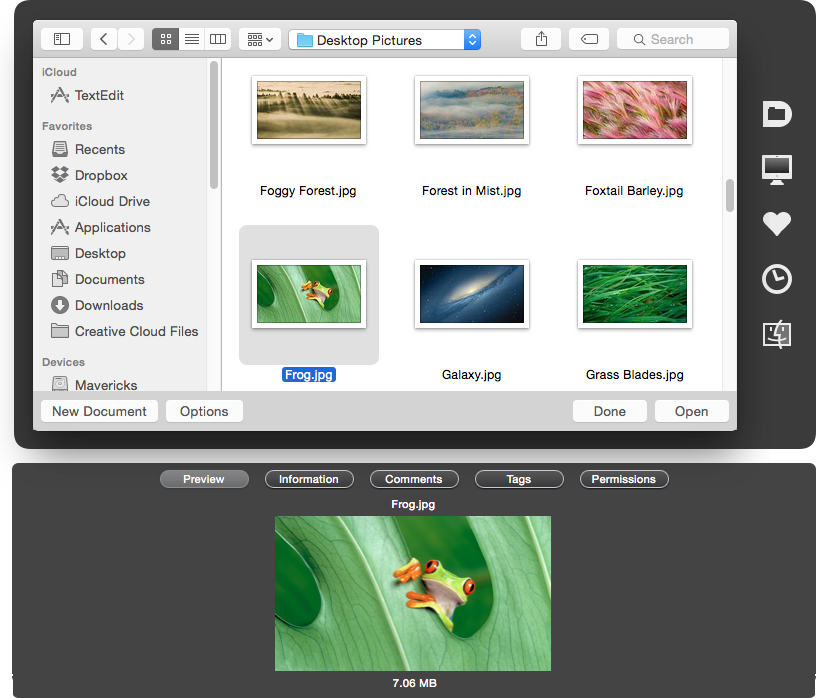
Default Folder X, developed by St. Clair Software, is a great way to maneuver through your files and folders. Here is what our QA guy has to say about it. (Hint: He uses lots of documents.) 


I was introduced to Default Folder X in 2006. Since then it's been an integral piece of my day. Each time I open or save a file, Default Folder X is there to greet me, letting me choose an application and set the location of my preferred 'default' folder for it. 


For example, when I choose File > Open or File > Save from the PDFpen menu, the file dialog is relative to my “PDFDOCS” folder. A few of my most used features are a list of 'Favorites' which can quickly be added to the Default Folder X sidebar, in case the default folder isn't the one I need, and 'Folder Sets' which I create for tasks like making how-to tutorials and testing PDFs in PDFpen.


After 8 years I'm still not using all of the available features, but Default Folder X makes me more productive each time I open or save a file – and that is priceless, and absolutely Smileworthy.


– Jonathan, Smile Support / Quality Assurance


screenshot


How much time does TextExpander save me?

Philip Blog, TextExpander, TextExpander Tips

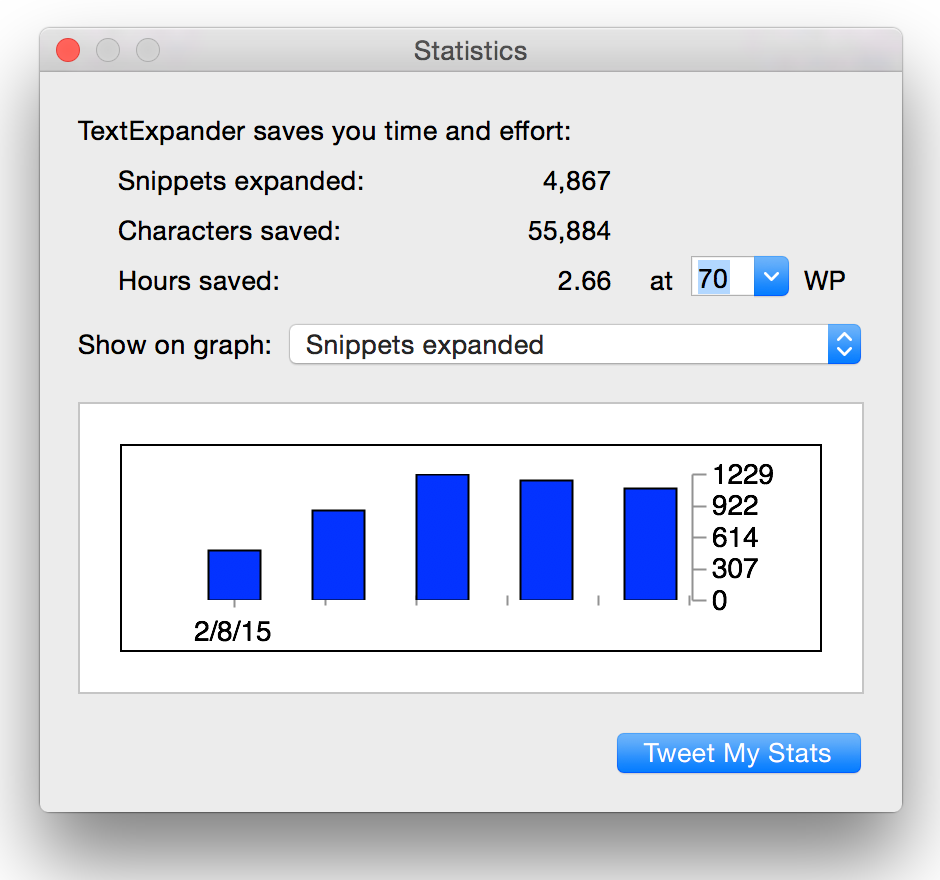
TextExpander helps you save time while typing and tracks how much of that precious time you save. Click on the Statistics button in the TextExpander toolbar to see how much time you're saving:

TextExpander Statistics

You can set your typing speed to make the hours saved more accurate. If you're a slow typist, like me, you'll definitely want to do that, as it increases your time saved.

Be a bit competitive. Click the Tweet My Stats button, and compare how you're doing with your followers on Twitter.

If you're curious which snippets you use most often, choose View -> Sort by Most Used, and that will sort your groups so that the most recently used snippets are at the top. If the order seems backward, choose that menu item again, and it will reverse the sort order. Try Sort by Most Recently Used to see which snippets you've used lately.

The sort orders work within groups, but maybe you'd like to know your most used snippet from all of your snippet groups. For that, we'll turn to AppleScript. Copy and paste this into Script Editor (an app found in Applications > Utilities), and click Run:

tell application “TextExpander”

set topSnippet to null

set topSnippetCount to 0

repeat with aGroup in groups

tell aGroup

repeat with aSnippet in snippets

if (use count of aSnippet) > topSnippetCount then

set topSnippetCount to (use count of aSnippet)

set topSnippet to aSnippet

end if

end repeat

end tell

end repeat

display dialog “Your top abbreviation is: ” & (abbreviation of topSnippet) & “, which you've expanded ” & (use count of topSnippet) & ” times to: ” & (plain text expansion of topSnippet) buttons {“OK”} default button “OK”

end tell


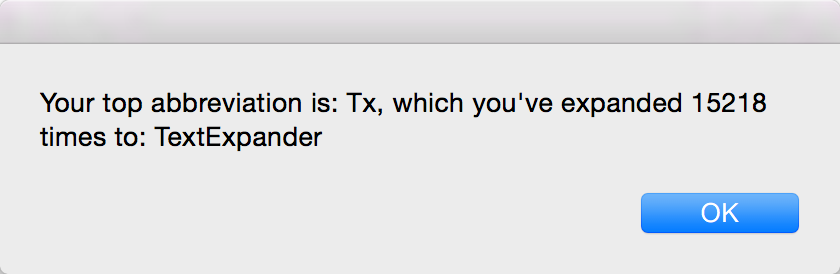
I hope you're amused with my result:

Your top abbreviation is Tx, which you've expanded 15218 times to: TextExpander

Show us your top snippet on Twitter by ending your tweet with: @TextExpander #SnippetStats