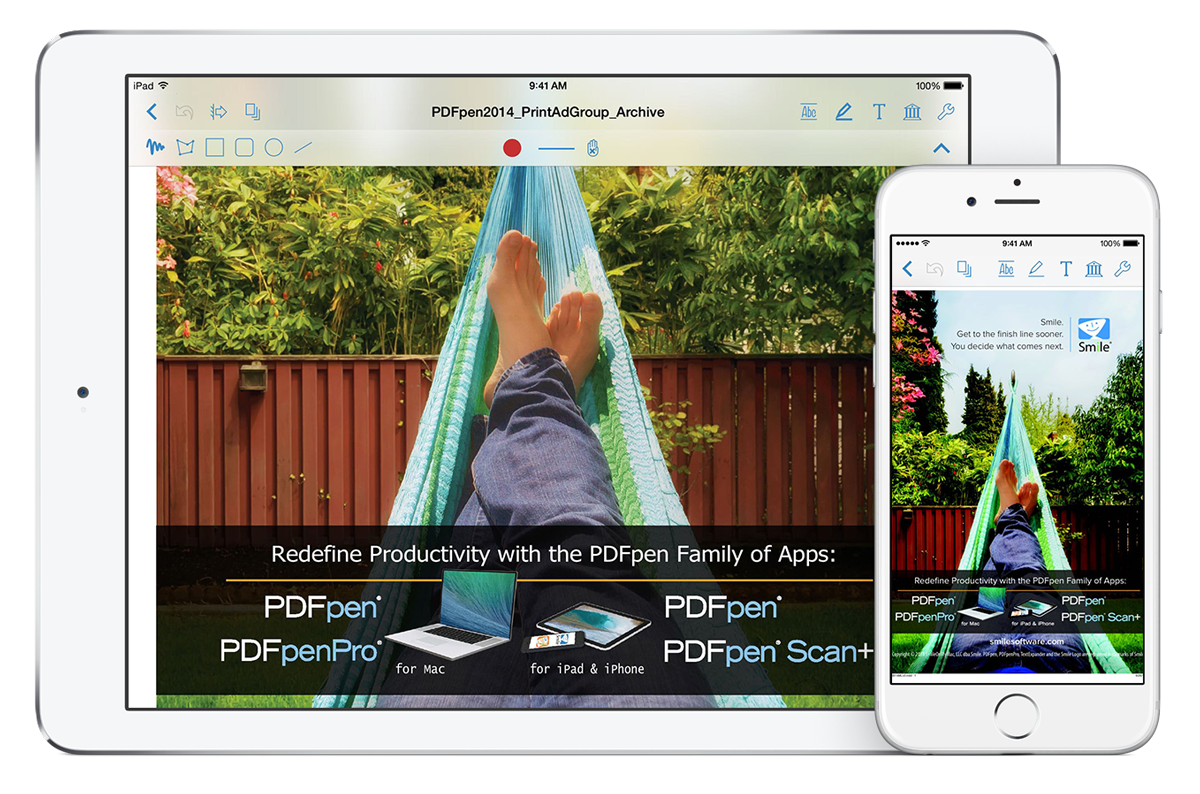
2 Day Deal: PDFpen for iPad & iPhone 40% Off

Philip Blog, PDFpen, Smileworthy

40% off

PDFpen for iPad & iPhone

2 Day Deal
40% off Thursday & Friday
Only on the App Store


Buy PDFpen 2, your PDF editor for iPad and iPhone, on the App Store for $11.99, Thursday April 16th and Friday April 17th.

With PDFpen 2, edit your PDFs anywhere you are! Sign contracts, scribble notes and highlights, make changes, fill out applications, and more on your iPhone or iPad. The only PDF editor available for both iPad and Mac, with iCloud and Dropbox storage & sync for seamless editing. Watch in it action!


PDFpen for iPad & iPhone 2.2 Updates Document Display, Adds Linked PDFs, 1Password Support

Philip Blog, PDFpen, Smileworthy, Software Releases

PDFpen for iPad & iPhone 2.2 is now available with new document display options, including list, small and large icons. You can also link to PDFs in supported cloud services to edit the original, whereas current PDF import edits a copy.

1Password support makes it easy to password protect a PDF. Let 1Password generate a crazy good password for your document, then remember it for you.

To update, go to the App Store on your iPad or iPhone and tap Updates to get the new version.

What's New:


  • New document display options: list, small icon, large icon (iPad only)
  • Link to PDFs in cloud services: iCloud Drive, Box, Transmit, etc.; changes sync upon document open and close
  • 1Password support for document passwords
  • Adds search by file name
  • Adds additional stamp types
  • Additional fixes and improvements


What's 1Password?

1Password

Keep your data safe and easily accessible with 1Password 5 for iOS, by the folks at AgileBits.

• Secure: 1Password uses AES-256 bit encryption of your entire database.
• Convenient: easily log in to websites, fill credit card data and addresses with the 1Password app extension.
• Everywhere: your data syncs to your computer, phone, and tablet, so it is always where you need it.


TextExpander touch 3.2.3—Recover Lost Snippets

Philip Blog, Software Releases, TextExpander

TextExpander touch 3.2.3 was released April 7 with an unforeseen bug that appears to erase all your snippets. The snippets are not lost forever, but an app update will be needed to bring them back, unless you use Dropbox Sync and restore them that way. We are working to have v3.2.4 available as soon as possible. We are sorry for the distress this is causing, losing snippets is always a frustrating event.

If you haven’t noticed any problems, it’s likely you have not opened the TextExpander touch app since the v3.2.3 update. It’s best not to open it until after the v3.2.4 update.

First, Do Not delete and reinstall the app as this may lose your snippets irrevocably.

You can still use snippets in TextExpander-enhanced apps. However you should not refresh your snippets in any TextExpander-enhanced apps, as this will update the snippets in that app to the default set of snippets.

If your snippets have disappeared, and you use Dropbox

If you have setup Dropbox to sync your snippets, then your snippets are still stored in Dropbox, and can be retrieved immediately:

  1. In the TextExpander Settings switch Dropbox sync OFF.
  2. Now switch Dropbox sync back ON.
  3. Choose “Link to Dropbox”. This should recover the snippets in the majority of cases. If not, wait a few minutes to see if your snippets will download. If you don’t see them in a few minutes, restart the TextExpander app (details below). If that doesn’t help…
  4. Visit your account on www.dropbox.com and revert your snippets file, Settings.textexpander, located in the Dropbox > TextExpander folder, to an earlier version (details below). If your snippet file got overwritten with the default, this will restore the earlier file version which has your snippets.

Once TextExpander 3.2.4 comes out, it will offer to “Revert” your snippets back to what you had in v3.2.2, or let you “Continue” with your current snippets. Since you already have your snippets from Dropbox, click “Continue”.

To restart an app in iOS:

  1. To fully quit an app in iOS 8, press the Home button, and then double-click the Home button. This opens the Task Bar which shows your running apps.
  2. Swipe the app up and off the screen. This truly quits it. Press the Home button to return to your Home screen.
  3. Tap on the TextExpander app to re-launch it.

To revert a Dropbox file to an earlier version:

  1. Open a browser to www.dropbox.com and locate the file to revert: Dropbox > TextExpander > Settings.textexpander.
  2. Control-click on the file, then choose Previous Versions, or select the file then choose More > Previous versions.
  3. Select an older version.

If your snippets have disappeared, and you do not use Dropbox

If you do not have Dropbox to restore your snippets, do not delete the TextExpander app. Your snippets can be retrieved by v3.2.4 when it becomes available.

If you deleted the TextExpander app to reinstall it after your snippets disappeared, then, unfortunately, your snippets are lost.

Recover snippets when TextExpander 3.2.4 is available:

  1. Open the TextExpander app to Groups view.
  2. An alert window will offer the choice to “Revert” to the 3.2.2 snippets, or “Continue” with the current set of snippets. Click Revert.


Be A PDFpen Hotkey Master

Philip Blog, PDFpen, PDFpen Tips

Hotkeys, or keyboard shortcuts, whichever you call them, are not just for power users and anti-mouse proponents. If you've spent hours in an app doing the same thing again and again, it may be time to move beyond ⌘C and ⌘V.

In PDFpen, and PDFpenPro, the main tools in the editing bar are all assigned hotkeys. This means it's easy to do something basic such as switch between the select text tool (⌘1 to select text for copying or correcting) and the edit tool (⌘2 to select images, text boxes or other objects and move them around). Here are a few sequences you might find handy.

Highlighting:

⌘3 – Turn on the Highlight Text Tool or
     ⌘⌥⇧5 – Go to the Highlight Text Tool in your custom highlighter color.

Adding text:

⌘5 – Add a text box with the Text Tool.
⌘2 – Switch to the Edit tool to drag the text box into place or
     ⌘⌥1 – Open the Alignment tab of Inspector to perfectly align several selected text boxes.
⌘< and ⌘> – Make selected text in a text box bigger or smaller.

     The same process works for
⌘8 – Comments (like a text box, but with more color options)
     and
⌘7 – Notes (the yellow sticky note/speech bubble with the collapsable text field). ⌘< and ⌘> do not work with Notes.

Adding a signature:

⌘6 – Turn on the Scribble Tool to draw your signature or
     ⌘Y – Open the Library to drag a saved signature onto your document.

Organizing your PDFs

⌘9 – Create a link to a URL or another page. Turn on this tool, then drag the cursor where you want your link button to appear. The button is invisible, so place it over something that looks clickable.

PDFpenPro users can create a Table of Contents (ToC).
⌘1 – Select some text to be the ToC entry title for that page then
⌘⇧<=  – Make it a new entry.

Finally, when you select a tool you can have it active for multiple uses, or as a one shot only. You choose by turning on or off “Keep tools selected after use” in the Editing tab of the Preferences (⌘comma).

We love collecting handy tips. If you have any to share, we wanna know.


PDFpen 7.1 Adds Advanced Page Numbering, Stamps and More

Philip Blog, PDFpen, Software Releases

PDFpen and PDFpenPro 7.1 are now available.

This update includes new options for page numbering, including control over font, color, formatting, and page range.

Create custom stamps, including dynamic stamps with the user’s name and the date the document is stamped. There are also a series of new additional stamps to choose from, such as Paid, Faxed, Copied, and more.

To upgrade, choose “Check for Upgrade…” from the PDFpen or PDFpenPro menu. If you're not an existing user, download here.

What's new in PDFpen 7.1?

  • Adds formatting options for page numbering:
    • Font Family
    • Font Size
    • Color
    • Format
    • Page Range
  • Create custom stamps
  • Adds additional stamps: Copied, Faxed, Paid, Scanned
  • Auto-deskew when performing OCR
  • Improves German localization
  • Improves VoiceOver support in PDF forms
  • Other fixes and improvements

We also publish detailed release notes, if you're interested.