TextExpander touch integration comes to Fantastical 2

Philip Blog, Smileworthy, TextExpander, TextExpander Tips

One of our favorite apps is Fantastical from Flexibits. It's one of the most popular calendaring apps on Mac and iPhone. It has a beautiful, intuitive interface and lets you use natural language to create events. If you enter “Meeting with Philip at 1:30 on Friday”, Fantastical creates an event with all those details filled in.

Fantastical 2 was released today, with lots of new features and interface refinements. And one of those new features is support for TextExpander touch. We thought it would be a good time to review what you need to do to make sure app work with TextExpander under iOS 7, using Fantastical as an example.

As we've written earlier, iOS 7 changed the way that TextExpander can share your snippets with other apps. It will now store your snippets in a reminder, which means that both TextExpander and the other app (in this case, Fantastical) must have access to Reminders.

When you first launch Fantastical, it will ask for permission to access Reminders. (If you skipped this on first launch, you can enable it in Settings.) In TextExpander, you need to enable the Share Snippets setting, at which point TextExpander will ask for access to Reminders.

If you go to your iOS settings, under Privacy > Reminders, you should see both TextExpander and Fantastical listed and enabled. If they are not enabled, you need to enable them. If one or both don't appear on the list, check the settings of the apps themselves and make sure they are set as described above.

Here's another tip for new TextExpander touch users: if you set Ignore Case in your TextExpander settings to “Off,” you'll avoid issues with auto-capitalization.

If you have any questions, our friendly support geeks are ready to help–just send us an email!

Fantastical, TextExpander settings


TextExpander and Mavericks

Philip Blog, News

We strongly recommend you use TextExpander 4.1.1 or later with Mavericks.

If you are using TextExpander 3.4.2 from the Mac App Store, you should download TextExpander 4.1.1 or later. It should automatically detect your license. If not, please send us an email with your Mac App Store receipt, and we'll work with you on a TextExpander 4 license.

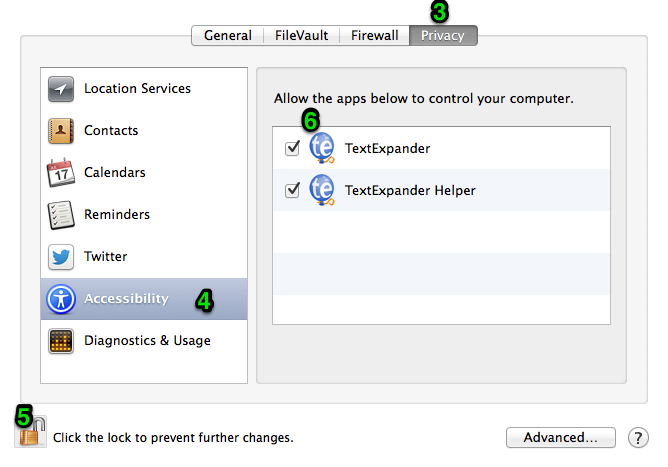
Here's how to enable the system support TextExpander requires on Mavericks:

1. Choose System Preferences from the Apple menu
2. Click on Security & Privacy
3. Click on the Privacy tab
4. Click on Accessibility in the list at the left
5. Click the lock icon to allow you to make changes (you'll be prompted for your password)
6. Check “TextExpander” and “TextExpander Helper” (the latter may not appear)


7. Launch TextExpander and you should be back in business

If you have any questions, please let us know.

Thanks for using TextExpander!


PDFpen 6 Supports Redaction via AppleScript

Philip Blog, PDFpen, PDFpen Tips

PDFpen 6 introduced support for performing redaction via AppleScript.

Redaction completely removes text from a document and leaves behind your choice of either a black box or a blank space. It can be used to remove sensitive information from a PDF before sharing it, such as names in transcripts or account numbers in bank statements.

Here's an example AppleScript showing how to remove all instances of “Smile” from the frontmost document:

tell application "PDFpen"
	tell document 1
		search string "Smile"
		repeat while performing search
			delay 0.1
		end repeat
		redact with block
		repeat while performing redaction
			delay 0.1
		end repeat
		display dialog "Done"
	end tell
end tell

The first part of the script performs a search for all instances of “Smile” in the frontmost document and waits for the search to complete.

The second part of the script tells PDFpen to redact all the instances of “Smile” found in the search, replacing them with a black block, and waiting for the redaction to complete. If you prefer blank space, use “redact without block”.

Once this script is completed, you'll no longer be able to search the document for “Smile”, because “Smile” no longer appears in the document.

You can use this sample as the basis for part of a folder action or automator action to perform redaction as part of your workflow.

Enjoy!


Adding the Emoji Group to TextExpander

Philip Blog, Smileworthy, TextExpander, TextExpander Tips

In the latest version of TextExpander [ download ], we added a new Predefined Group of snippets that you can add to your snippet library: emoji. 

In case you're note familiar, emoji is the Japanese term for the ideograms, or “smileys” used in text messages and elsewhere. According to Wikipedia, the word literally means “picture” (e) + “letter” (moji). The characters are used much like emoticons, but there are many more emoji, which depict a vast range of items and emotions.

If you want to add the new Emoji group, it's simple. Just go to the File menu, and choose Add Predefined Group > Emoji. The abbreviations follow a standard, with a colon before and after the emoji name. (Example: 🙂 inserts a smiley face.) If the emoji has two words, there is a space between the words. (Example: :space invader: inserts a little character from the classic arcade game.)

There are 247 emoji in the group. If you don't see your favorite, let us know.


New! Our mobile scanning and OCR app, PDFpen Scan+

Philip Blog, PDFpen, Smileworthy

At Smile, we are always looking for new ways to help our users be more productive and save time. Today, we are pleased to announce the release of the latest app in our PDFpen suite, PDFpen Scan+. 

PDFpen Scan+ lets you scan and OCR documents wherever you are. You can open them in PDFpen for iPad or PDFpen for iPhone for further editing or share them via cloud services for seamless editing on your Mac. 

Some of the features included in PDFpen Scan+:
– One-touch scanning directly from your iPhone or iPad camera
– Scan multiple images into a single document
– Detect page edges automatically and crop scans
– Use on-device OCR to convert scans into searchable PDFs
– Copy text recognized by OCR
– Email and share PDF documents with embedded, searchable OCR text
– OCR in 16 languages

Get PDFpen Scan+ on the App Store now–the introductory price is just $4.99!