Snipr / Snurl / Snipurl

Philip Blog, TextExpander, TextExpander Tips

David Chartier, Assistant Editor at Ars Technica, requested support for snipr.com. I was surprised to find that Snipr, Snurl, and Snipurl are all the same service. They will require registration as of December 31, 2008. Given that, I wrote a snippet which supports using these services as a registered user. Here’s what to do to install the new snippet:

  1. Download Snipr.textexpander.zip
  2. If Safari doesn’t automatically unzip it, then double-click to unzip it
  3. Launch System Preferences and select TextExpander
  4. Under the + menu, select Add Group from File…
  5. Check the box labeled Import as editable local copy: ImportEditable.png 

  6. Locate the Snipr.textexpander file and press Open
  7. Click the disclosure triangle to the left of the new Snipr group
  8. Select the /snipr snippet
  9. Change mySnipUserID and mySnipAPI at the top to your own values (you can find the API value in your Snipr preferences)
Here’s how to use the new snippet:
  1. Copy a URL
  2. Click where you’d like the shortened URL to appear
  3. Type /snipr
  4. Voilà! The shortened URL will appear.
Happy Snipr-ing (or is it Snurl-ing or Snipurl-ing?)… Enjoy!

TextExpander: Date and Time Math

Philip Blog, TextExpander, TextExpander Tips

Let's say it's your job to remind people to do something. Maybe you are the accounts receivable person, and you regularly need to remind people to pay you in 15 days. If you use TextExpander, your days of looking at the calendar and calculating that date are over! We added date and time math capability to TextExpander 2.5 and later. You can create a snippet that automatically inserts a date that is 15 days from today. Here's how:

1) Create a new snippet by clicking on the plus (+) sign under your list of snippets on the left in the TextExpander window.

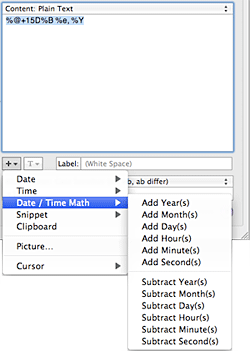
2) Click on the plus (+) sign under the snippet content pane on the right. Choose Date/Time Math > Add Day(s).

3) TextExpander inserts %@+1D into your snippet content pane. Change “1D” to “15D”.

4) Insert the date format you wish to appear, again using the plus (+) sign menu on the right. For example, if you want the date to appear in formatted “October 29, 2008”, insert the following:

 – Choose Date > Month > January. Add a space.

 – Choose Date > Day > 1. Add a comma and space.

 – Choose Date > Year > 2001

5) When you are done, the snippet content should be:  %@+15D%B %e, %Y

6) Give your snippet an abbreviation, such as “d15” or “payupnow”.

TextExpander 2.5 is a free upgrade to registered users of TextExpander 1.x and earlier. You can download it here. Besides the date/time math, we've also added some new built-in snippet groups: Internet Productivity (which includes the AppleScripts we've posted here for URL shortening) and Symbols (for those who need to use symbols like copyright, trademark, euro, yen, infinity, etc.).


Get Tr.im With TextExpander

Philip Blog, TextExpander, TextExpander Tips

bit.ly and TinyURL. A few weeks ago on Twitter, TJ asked if we couldn’t do one for the shortening service tr.im. I thought I would use TJ’s challenge as a personal one to push the limits of my limited geekiness and figure it out myself. I got as far as looking at the tr.im API, and thought “I’m not going to be able to figure this out without help.” Then I got busy with stuff and promptly forgot about it. A few days ago, I saw this post and tried the script the author offers. It didn’t work for me, so I referred to my colleague Greg (aka he who knows all about TextExpander). He told me that:

The author is using a non-standard Unix tool (wget), i.e. not one which is installed with stock Mac OS X. It was fairly easy to replace his use of wget with curl, and so I’ve done.
I definitely would have never figured that out myself. You can download Greg’s revised AppleScript snippet and try it out. The zipped file contains a TextExpander snippet group (of one snippet) that you can add to your library by choosing “Add Group From File…” from the Add menu. And you’re welcome, TJ. 😉

Use TextExpander As An Application Launcher

Philip Blog, News

AppleMatters. He wrote an extensive post on how you can use TextExpander to launch applications and control them. The snippets are really simple and they really work. With a short TextExpander abbreviation, you can open or quit a program, navigate to a website, close all Finder windows, and more. While operations like Open or Quit have a built-in shortcut, the program has to be active before you can use the shortcut. These AppleScripts activate the programs for you. Best of all, you don’t have to be a true geek to use these. Bakari recommends testing the AppleScripts in Script Editor first, before pasting them into a TextExpander snippet, but this is very easy to do. 1) Open Script Editor (it’s in the AppleScript folder in Applications).
2) Paste one of Bakari’s scripts into the editor.
3) Click “Run.”
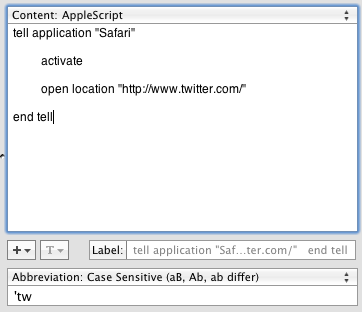
If the script did what you wanted it to do, you’re good to go. Paste it into a new TextExpander snippet (be sure to change the format to AppleScript), assign a short abbreviation, and try it out. My favorite is this one for opening up Twitter in Safari without having to be in Safari or use a bookmark:

tell application "Safari"
	
	activate
	
	open location "http://www.twitter.com/"
	
end tell
I set the abbreviation to ‘tw (I’m using the apostrophe as a leading character in all my AppleScript snippets, and that seems to be working nicely). If you have any creative ideas for using AppleScript to control programs with TextExpander, share them in the comments. teapplescr.png