No Superhero Powers Over iPhone OS

Philip Blog, iPhone, TextExpander

TextExpander touch for the iPhone tomorrow. We’ve been inundated with requests for this since the iPhone was first introduced, so it’s nice to give the people what they want. I also feel it’s important to be absolutely clear about what TextExpander cannot do. Chris Pirillo, of Lockergnome fame, sent me this question: “Will the iPhone app work like the desktop version? smile How on earth did you pull that off!?” The short answer to the question is “no”. We have no special superhero powers over the iPhone OS. No Jedi mind tricks. TextExpander touch, like other third-party iPhone apps, cannot run in the background. You won’t be able to type your abbreviations to trigger expansions while you are working in other apps. (Not yet, anyway. See Greg’s post about the TextExpander touch SDK.) But that doesn’t mean TextExpander touch will be a disappointment. Because what it can do, it can do very well:

  • We have made it as seamless as possible for composing notes and inserting them to email or your Twitter client. We’ve also made it easy to copy your composed notes to other apps.
  • You can import your snippet groups from the Mac via local network. That is a handy thing to have on your iPhone, even if you never use TextExpander touch for a single text expansion. You’ll have a library of your most frequently-used phrases, signatures, URLs, etc. We’ve made it simple to insert a snippet into email or Twitter, skipping the Compose step altogether.
  • It will be easy to create snippets, using the new copy-and-paste function as well. If you have received an email with some standard paragraph you want to use again, you can copy it and create a TextExpander touch snippet with only a few taps on your iPhone.
Remember when you first started using TextExpander? You might have had a handful of snippets, like your email signature or a standard answer to a frequently-asked question. But the more you used TextExpander, the more ideas you got for how you could use it. And many of you shared your ideas with us. Autocorrect spelling errors? HTML code snippets? URL shortening? All these ideas for extending TextExpander’s usefulness came from TextExpander users. People will start coming up with productivity hacks using TextExpander touch the way they have for TextExpander. You’ll share your ideas with your friends (and with us, we hope) and TextExpander touch will evolve within the context of the iPhone. That’s worth a few bucks.

Text substitution: gateway drug to TextExpander

Philip Blog, News

text substitution. For those who use TextExpander, text substitution is not particularly interesting. It works only in Cocoa applications, and its interface is not well-suited to large snippets or managing snippets. For those new to text expanding utilities, welcome! Here are some great reasons to go beyond text substitution all the way to TextExpander:

  • Organize snippets into groups
  • Insert the date and time in any format you prefer
  • Perform date math (for example, insert tomorrow’s date)
  • Predefined snippets for spelling correction, symbols, accented words, HTML, CSS, and URL shortening
  • Sync snippets via MobileMe or DropBox
  • Position the cursor wherever you want in your expanded snippet
  • Nest snippets — include one snippet within another
  • Print your abbreviations and snippets (cheat sheet)
  • Invoke AppleScripts and shell scripts as snippets
  • SALE!! To celebrate the release of TextExpander touch for iPhone (available August 26), TextExpander is 50% off through September 9. Please visit our web store or purchase directly from TextExpander.

    How to Import Word AutoCorrect entries

    Philip Blog, News

    TextExpander 2.6.2, which you may click to download.

    1. Download AutoCorrect.zip from the Microsoft Word MVP Site by clicking on the icon halfway down the page. How can I import and export all my AutoCorrect entries, so they can be transferred to another machine?.jpg
    2. Double-click on the AutoCorrect.zip file you downloaded, and it will uncompress to AutoCorrect.dot.
    3. Open AutoCorrect.dot using Word 2004 (or Word on Windows). When prompted, click Enable Macros.
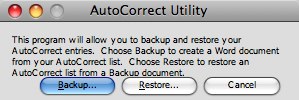
    4. Locate the AutoCorrect Utility window and click Backup… AutoCorrect Utility.jpg You should see progress at the bottom of the window then a save dialog.
    5. In the Save dialog, set the Format: to Rich Text Format (RTF)
    6. Set the filename to Word Import.rtf and set Where: to Desktop
    7. Click Save.
    8. Click Cancel in the AutoCorrect Utility window and close AutoCorrect.dot
    9. Open the Word Import.rtf file you just saved.
    10. Hold the Control key and click in the cell labeled RTF.
    11. Choose Delete Cells… from the popup menu.
    12. Press Delete entire column in the Delete Cells window and press OK
    13. Choose Table -> Convert -> Convert Table to Text… from the menu.
    14. Press the Tabs button in the Convert Table to Text window and press OK.
    15. Delete the first three lines of text
    16. Save the Word Import.rtf document, and quit Word. (If you’re on Windows, transfer the Word Import.rtf file to your Mac.)
    17. Choose System Preferences… from the Apple menu.
    18. Choose the TextExpander system preference pane.
    19. Under the TextExpander.jpg menu, choose Add Group from File…
    20. Locate Word Import.rtf on the Desktop and click Open
    21.  
    You should now have a group named Word Import copy containing your AutoCorrect snippets from Word.