
Update: TextExpander 3 has built-in Dropbox sync. (Preferences > Sync > Dropbox)
iPhone Developers Integrate TextExpander touch
TextExpander touch for the iPhone, we also released an SDK (Software Development Kit) that other iPhone developers could use to integrate TextExpander touch functionality into their apps. The response has been very positive, both from developers and users.
Tip: If you want to use TextExpander touch with an app that supports it, you must turn on “Share Snippets” in the TextExpander touch preferences. You should also check the preferences of the app to see if it has a TextExpander setting that you need to enable.
Here are the apps that have so far integrated TextExpander (links go to the App Store):
Tweetie 2
 “The Twitter client that redefined Twitter clients is back, and it’s even better. Rewritten from the ground up with a fast and powerful new core, Tweetie 2 offers the most polished mobile Twitter experience around.”
WriteRoom
 “For people who want to write and take notes on their iPhone. WriteRoom is a distraction free writing environment. Unlike Notes, WriteRoom provides a clean interface and tether free syncing.”
Go Mail Yourself
 “Go Mail Yourself allows you to quickly send yourself email notes or reminders using the Mail application. One of the basic fundamentals associated with improving productivity is quickly and easily capturing ideas and information so you can process them at the appropriate time.”
Attendance
 “Attendance allows you to take and keep attendance records. Its main intended use is for teachers to keep track of records for their classes, but it can also be used for meetings and group gatherings.”
More apps will be adding TextExpander integration in the future. We’ll keep an up-to-date list on our website.
Mac Computer Expo in Petaluma: October 3!
Mac Computer Expo in Petaluma. This is the largest Mac gathering outside of Macworld, and it features a stellar lineup of speakers. Lots of your favorite Mac-related companies will be there too. Admission is free!
Greg, Philip and I will be showing off the new PDFpen 4.5 and TextExpander touch for the iPhone. Feel free to come by and say “hi”.

TextExpander iPhone tip: Snippets To Go
TextExpander touch.
It’s easy to transfer snippets from your Mac to your iPhone. But it’s just as easy to transfer snippets from your iPhone to your Mac–or a friend’s Mac, as long as it’s running TextExpander 2.7 or later. (Your friend can easily download the free demo!) Here’s how:
1) Under Groups, select the snippet group you want to send.
2) Tap the Action button in the bottom left.
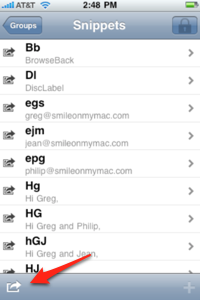 3) Tap “Send via Local Network.”
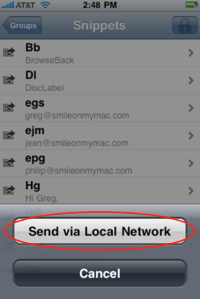 4) You’ll see a list of available Macs and iPhones on the network. Tap the name of the Mac you want to send your snippet group to. That Mac will display an alert asking for confirmation.
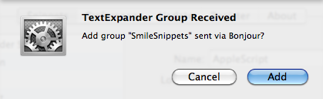 Click “Add” and your snippets will be added to TextExpander on that Mac, and you can use them.
Good manners would dictate that you delete the group from your friend’s Mac when you are done.
TextExpander touch is still $1.99 in the App Store. This special introductory price ends September 9!
Click “Add” and your snippets will be added to TextExpander on that Mac, and you can use them.
Good manners would dictate that you delete the group from your friend’s Mac when you are done.
TextExpander touch is still $1.99 in the App Store. This special introductory price ends September 9!
Using Texter (Windows) with TextExpander touch
Texter is a free text expansion application for Windows developed by the folks at Lifehacker. You can use Texter bundles with TextExpander touch on the iPhone. Here’s how:
1. Download and install Texter 0.6a, which has support for exporting bundles in TextExpander format.
2. Launch Texter, select your bundle tab, and choose Export to TextExpander File from the Bundle menu.
3. Log in to your Dropbox account, or get a Dropbox account. You can also upload the .textexpander file to your Web server. In Step 12, use the full URL to the file on your server.
4. On Dropbox, open the Public folder of your My Dropbox folder.
5. Click Upload files:
 6. Click Choose files…
7. Select your .textexpander file from step 2 and press Start Upload.
8. When your upload is complete, hover over the uploaded file and click the arrow at the far right:
6. Click Choose files…
7. Select your .textexpander file from step 2 and press Start Upload.
8. When your upload is complete, hover over the uploaded file and click the arrow at the far right:
 9. Choose Copy Public Link and leave that visible.
10. On your iPhone (or iPod touch), launch TextExpander.
11. Choose Groups, press +, and press Add via URL.
12. Enter the URL shown from step #9.
Finished! You now have your Texter bundle as a TextExpander group on your iPhone!
9. Choose Copy Public Link and leave that visible.
10. On your iPhone (or iPod touch), launch TextExpander.
11. Choose Groups, press +, and press Add via URL.
12. Enter the URL shown from step #9.
Finished! You now have your Texter bundle as a TextExpander group on your iPhone!