
Download TextExpander 3.2.2. A few specific factors frustrated TextExpander users: 1. TextExpander assumed you were starting a new sentence when switching from one application to another. That is, if you were typing an email, switched to your browser to look up something, then switched back to the email to finish your sentence, the first word typed would be capitalized regardless of its position within a sentence. 2. If you typed a period or other sentence-ending punctuation, then used the mouse to change the position of the insertion cursor, the next word typed would be capitalized regardless of its position within a sentence. 3. Any time you re-positioned the insertion cursor using the arrow keys, TextExpander would not auto-capitalize again until you typed a sentence-ending character. These issues have been addressed in TextExpander 3.2.2. In applications that thoroughly support Apple’s accessibility interface, TextExpander can now examine the text near the insertion cursor to determine whether the cursor is in a sentence-starting location. Unfortunately, many popular applications do not support this interface, so users of applications such as BBEdit and Microsoft Word users will find that the new version of TextExpander just doesn’t automatically capitalize as often. At least unwanted capitalizations should no longer occur in those applications. Another common case of unwanted capitalization resulted when typing web or email addresses. That is, typing Smile’s web address would result in: www.Smilesoftware.Com with unwanted capital ‘S’ and ‘C’. TextExpander now waits for a space or line break after punctuation before activating automatic capitalization. Additionally, short snippets such as “i “ -> “I “ and “u “ -> “you “ used at the start of a sentence with capitalization enabled resulted in incorrect expansion output which has been fixed. For the future, a few users have requested that “Eliminate double capitals at sentence start” be changed to “Eliminate double capitals at word start”. That is, it would suppress a second capital letter at the start of a word anywhere. This is helpful to avoid errors like “TRacy” or “NOrth”, but it does replace “OK” with “Ok” (which can be ‘fixed’ with an “OK” -> “OK” snippet). If you have an opinion on this possible future change, let us know your thoughts and reasoning.
Using the Fujitsu ScanSnap with PDFpen
We are often asked if PDFpen supports the popular Fujitsu ScanSnap scanners. Support is not built into OS X for these scanners, so PDFpen cannot detect them when connected using its “Import from Scanner” command. With a little configuration, however, the software that comes with the ScanSnap, ScanSnap Manager, makes it easy to scan direct to PDFpen. Here's how: To configure, launch ScanSnap Manager, or bring it to the front via command-tab. 1) Choose Settings from the ScanSnap Manager menu. 2) In the resulting window uncheck “Use Quick Menu”. 3) Click “Detail” to show all the settings tabs. 4) Under the “Application” tab select PDFpen as the application. You'll likely need to use “Add or Remove” to add PDFpen to the list of choices first.
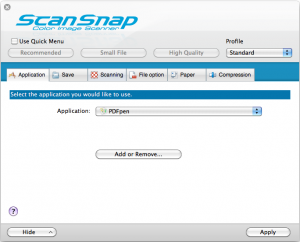
5) Under “File Option” select PDF as the file format. Uncheck “Convert to searchable PDF”.
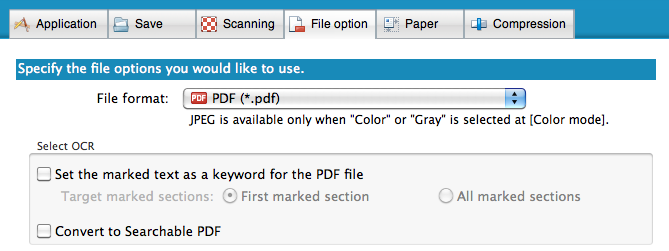
6) Go back to “Application”. Click the “Hide” button, and close the settings window. Now when you press the scan button on the scanner it will scan and then automatically open the result in PDFpen.
Black Friday Special: TextExpander just $19.95
 If you’re looking for Black Friday deals, TextExpander weighs much less than a big screen LCD TV – and makes you more productive, not less!
Today only, TextExpander is just $19.95. That’s over 40% off!
The coupon code is SMILEFRIDAY. Follow this link to our store, and the coupon will automatically be applied.
The Family Pack is just $29.95. The discount expires on November 27, 2010.
If you’re looking for Black Friday deals, TextExpander weighs much less than a big screen LCD TV – and makes you more productive, not less!
Today only, TextExpander is just $19.95. That’s over 40% off!
The coupon code is SMILEFRIDAY. Follow this link to our store, and the coupon will automatically be applied.
The Family Pack is just $29.95. The discount expires on November 27, 2010.
Using Shell Scripts to Extend TextExpander
> I’ve created the following snippet with abbreviation: ,getdate: > > %date:EEEE% %date:d% %date:LLLL% %date:Y% – día %date:D% del año > > Which is converted to the following on my system: > > jueves 30 septiembre 2010 – día 273 del año > > However, I would like the day of the week and month to be in uppercase, as follows: > > Jueves 30 Septiembre 2010 – día 273 del año > > Do you know how to do this? It seems that the Unicode date formatting doesn’t offer a way to specify that the month or day names should be returned in uppercase. I was able to write a Perl script and to nest the ,getdate snippet to convert the first and third words to uppercase. I set my abbreviation to ,date and my Content: to Shell Script:
#!/usr/bin/perl

$_ = "%snippet:,getdate%";

m/(\S+) (\S+) (\S+)(.*)/;

$_ = ucfirst($1) . " $2 " . ucfirst($3) . "$4";

print "$_\n";
Here is what ,date returns right now with my system set to return date information in Spanish: Miércoles 13 Octubre 2010 – día 286 del año That which wasn’t possible before is possible now, thanks to the power of shell scripts in TextExpander.
Creating a PDF from HTML help docs with PDFpenPro 5
PDFpenPro 5 is the ability to create a PDF from HTML files or a web site.
Customers often ask for a printable copy of the help with our products. The help is initially created in HTML that can be indexed and viewed through Apple’s Help Viewer, and also viewed in a web browser. To print it, however, would mean going to every web page in the help and manually printing each one.
Here’s the PDFpen help HTML link, and here’s the PDFpen help PDF link.
Creating the PDF was very easy in PDFpenPro. Here’s how.. in PDFpenPro select File->New->From HTML…, then enter the URL for the index page, and how many levels deep to go. One level is the page itself. Two levels does the page and the links from that page. Two is just right for the help. Click Create and a PDF will be created from the given URL and its immediate links.
 The links within the resulting PDF all operate, and even a table of contents is generated!
To finish the job I chose “Number Pages” from PDFpenPro’s Script menu, and then inserted a blank page at the start of the document and used it to place a title.
The links within the resulting PDF all operate, and even a table of contents is generated!
To finish the job I chose “Number Pages” from PDFpenPro’s Script menu, and then inserted a blank page at the start of the document and used it to place a title.
 The new help PDF file can now be saved and printed with ease.