
One side effect of the Affordable Care Act is an increase in dependent eligibility audits for employer-sponsored health care. These audits often require you to produce the first page of your tax filing for review. The only thing an auditor may need to see is your filing status and dependent count, but there's an awful lot more on the first page of your tax return. This is where PDFpen's redaction capability can come to the rescue.
Redaction removes sensitive information from a PDF file and replaces it with a blank area or a black box.
Some folks try to achieve redaction by using the rectangle tool to draw a filled black box over sensitive text. When this is done, a reader of your PDF can remove the rectangle and see the text underneath. Also, when someone searches the PDF, the sensitive information will be available in the search.
There are two ways you can redact with PDFpen:
1. Redacting selected text:
- Choose Tools -> Select Text Tool from the menu
- Select the text you wish to redact: for example, your social security number
- Choose Format -> Redact Text – Block
2. Redacting a whole area of a document:
- Choose Tools -> Select Rectangle Tool from the menu
- Select the text you wish to redact: for example, all of the numbers and tax calculations beneath the exemptions section
- Choose Format -> Redact Text – Block
Here's what a sample redacted tax return looks like:
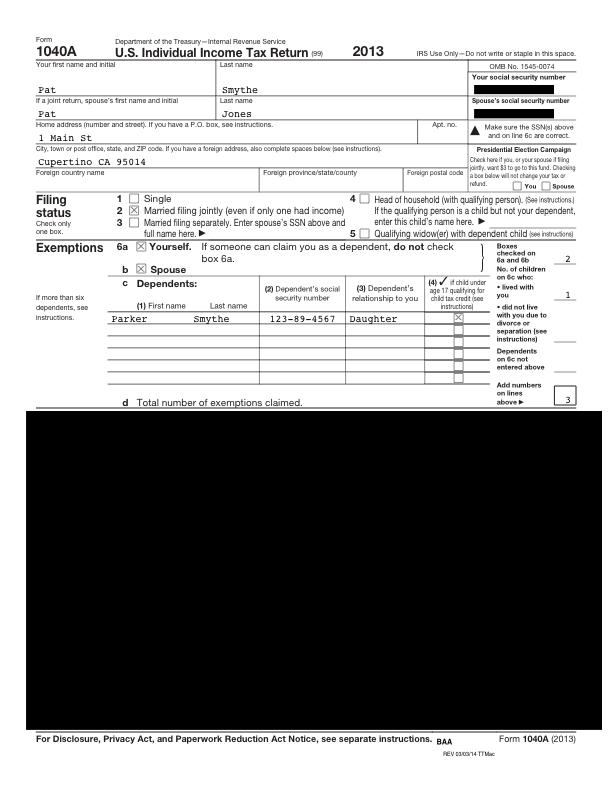
Notes:
- PDFpen cannot remove line drawing elements, for example the lines that make up a table or border. If you use option #2 with Redact Text – Erase, you'll still see lines. Rest assured, any text and graphics have been removed.
- The File -> Revert To command, available only if you use version saving, can be used to get back to a non-redacted version of a PDF on your computer. If you have a shared computer and would like to prevent this, when you're done redacting: choose File -> Duplicate to save the redacted version, then delete the original. This is not a necessary step to protect yourself when emailing the PDF, as file versioning is entirely local and accessible only on your computer.