

Help: OCR
OCR (Optical Character Recognition) is the process of converting a bitmap image of text (such as a scanned document) into text which can be selected, copied and searched by word processing software. OCR technology will not produce a perfect rendering of the bitmapped text. You will need to proofread and edit the text that results from OCR.
Tips: The quality of the scan affects the quality of the OCR results. To get high quality OCR results you need a high quality scan.
- Make sure the document is well-lit when you take the scan. The camera screen offers flash control.
- Make sure the scan is cropped so that the text is completely horizontal and straight. Angled text will not be recognized by OCR. Auto-cropping in auto-scan mode will help.
- Whether you have taken a new scan or imported a PDF, if it is faded or dim edit it to increase the contrast and brightness. For tips on adjusting the contrast and brightness see Editing.
OCR a document
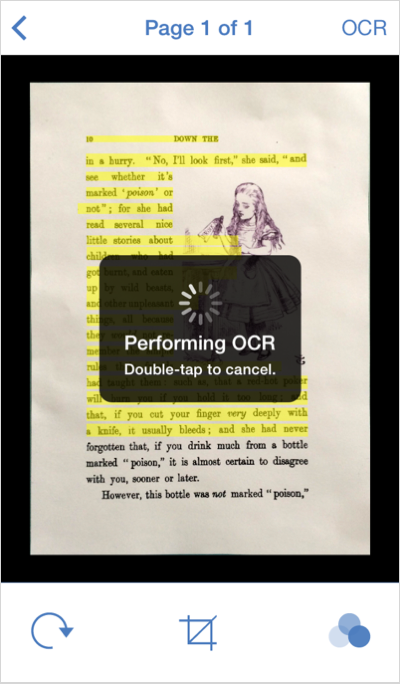
From Documents view, tap on a document to open it. You will see the “OCR” button in the toolbar. Tap it to OCR the whole document.
If you wish to OCR only one page, tap on that page and then tap “OCR” in the menubar.
Preview OCR Results
Once you run OCR you will see a preview of the results overlaid on the document. Tap to make it disappear, or appear again.
Alternately, tap “OCR” > “Show OCR text” or “Hide OCR text.”
Copy OCRed text
After OCR is performed, the text has been digitized and can be copied and pasted into another document or email message.
- After OCR is performed, tap “OCR” in the top menubar.
- Tap “Copy page text” (or “Copy document text” if you performed OCR on the entire document).
Your text is now on your clipboard and can be pasted into another document.
Email OCRed text
For more on how to email the OCRed text of a document see Email a document.
OCR and Language
If you would like to use OCR on documents in a language other than the default language of your device, you will need to add that language via the Tools  menu.
menu.
- From Documents view tap Tools > OCR language.
- Tap the language you would like to use.
The OCR library for that language will download. Note: requires internet access.
Languages include: Chinese (Simplified and Traditional), Danish, Dutch, English, Finnish, French, German, Italian, Japanese, Korean, Norwegian, Polish, Portuguese, Russian, Slovenian, Spanish, and Swedish.
© 2003-2014 SmileOnMyMac, LLC dba Smile. All rights reserved.
PDFpen and the Smile logo are registered trademarks of Smile.