

Help: Editing documents
Edit an imported image or imported PDF. Once an image or PDF has been imported, you will see it in Documents view. Open a document and tap on a page to access the editing tools.
Auto-scan mode: If you take a scan in auto-scan mode, the paper size selection, color selection, and cropping should already be done for you. If you would like to redo or tweak any of that, tap on that scan from Documents view to open it.
Manual scan mode: If you take a scan with auto-scan mode off, you will need to open your document to edit it.
Edit a document
To take a new scan see the section on scanning.

Once a new scan has been taken, it will appear in Documents View. Open a document by tapping on it, then open a page by tapping on it. You will see three tools in the bottom toolbar.
Rotate page
 : The page will rotate clockwise 90° with each tap. Tap “Done” in the upper right to finish.
Crop a page
 : PDFpen Scan+ will try to locate the edges of the page for you. On each side of the page you will see a bar with draggable handles at each end and one in the middle. If the cropping bars need adjustment, drag the handles until the bars match up with the page edges.
Blue handles at the corners will drag just that end of the bar.
Orange handles in the middle of the bar will drag the whole bar.
Full-image
 icon will reselect the whole image.
Zoom into the scan for a more precise crop. Double-tap or pinch to zoom in and out.
- Assign a paper size
 : Once you are done with cropping, assign a paper size. US letter is chosen by default. You can chose from :
A4 (8.3 x 11.7 in) (210 x 297mm) US letter (8.5 x 11 in) (216 x 279 mm) US legal (8.5 x 14 in) (216 x 356 mm) A3 (11.7 x 16.5 in) (297 x 420 mm) A5 (5.8 x 8.3 in) (148 x 210 mm) Business Card (3.5 x 2 in) (88.9 x 50.8 mm) Custom (Your choice) Receipt (Estimated proportions) Image Adjustments

- Adjust brightness
 : Tap to reveal the brightness slider. Drag left to dim and right to brighten.
 - Adjust contrast
 : Tap to reveal the contrast slider. Drag the left to reduce contrast, drag right to increase.
- Adjust brightness
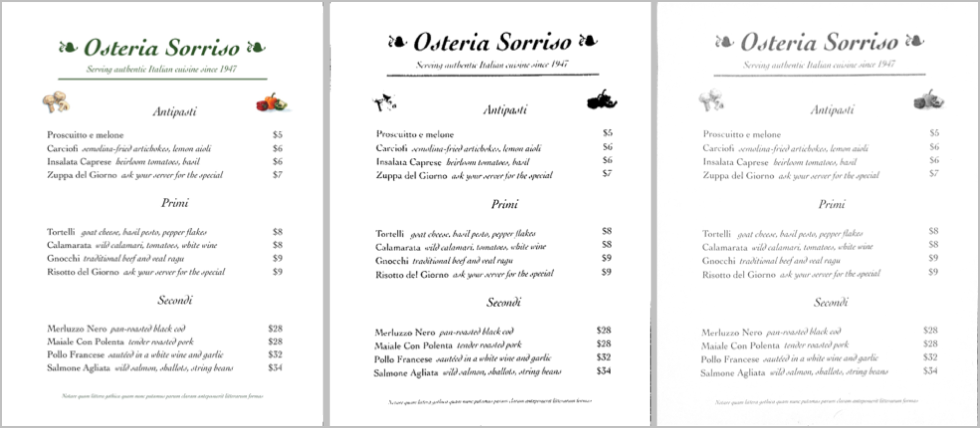
- Color format: Tap one of three options to select the color format of your document. For the visual effect of each color format see the image below.
- Color
 : Keep all colors of the page, this will lead to the largest file size.
 - Black & White
 : Strips all color and gradients, this makes the smallest file size.
 - Grayscale
 : Removes the color, but leaves in gradients.
- Color
Tap “Done” once you are finished with each edit. Tap “Cancel” if you do not wish to complete the edits.
© 2003-2014 SmileOnMyMac, LLC dba Smile. All rights reserved.
PDFpen and the Smile logo are registered trademarks of Smile.